

How to check if your phone supports eSIM: a complete verification in minutes
1. Quick answer
2. From feature phones to eSIM: how mobile devices have evolved
3. What is eSIM in simple terms
4. EID: what it is and why you need it
5. How to check eSIM in 10 seconds
6. Checking in the settings of different phones
7. Which phones support eSIM
8. Why a compatible phone sometimes fails to connect
9. Checking via box, model, and IMEI
10. A traveler’s real-life story
11. Tips from the Telwel team
12. Frequently asked questions
13. Checklist before buying an eSIM
14. Summary
1. Quick answer
If you want to check whether your phone supports eSIM, dial *#06# in the Phone app. If an EID number appears on the screen, your smartphone most likely has a built-in eSIM module. After that, open your SIM card settings and check for an “Add eSIM” button. [esimkitstore](https://esimkitstore.com/blogs/blog/esim-compatible-phones-2026-how-to-check-eid-star-06)
The most reliable verification consists of four steps: [esimkitstore](https://esimkitstore.com/blogs/blog/esim-compatible-phones-2026-how-to-check-eid-star-06)
1. Dial *#06# and look for the EID. [esimkitstore](https://esimkitstore.com/blogs/blog/esim-compatible-phones-2026-how-to-check-eid-star-06)
2. Find the “Add eSIM” option in Settings. [esimkitstore](https://esimkitstore.com/blogs/blog/esim-compatible-phones-2026-how-to-check-eid-star-06)
3. Check the exact model number and region of sale. [esimkitstore](https://esimkitstore.com/blogs/blog/esim-compatible-phones-2026-how-to-check-eid-star-06)
4. Make sure the phone isn’t carrier-locked. [esimkitstore](https://esimkitstore.com/blogs/blog/esim-compatible-phones-2026-how-to-check-eid-star-06)
Important: a single sign doesn’t always give a definitive answer. A phone may technically have eSIM hardware, but the specific regional variant, firmware, or carrier restrictions can prevent it from working. [esimkitstore](https://esimkitstore.com/blogs/blog/esim-compatible-phones-2026-how-to-check-eid-star-06)
2. From feature phones to eSIM: how mobile devices have evolved
Today’s smartphone can store multiple mobile profiles at once, switch between networks, and connect to the internet without a physical SIM card. But it wasn’t always like this.
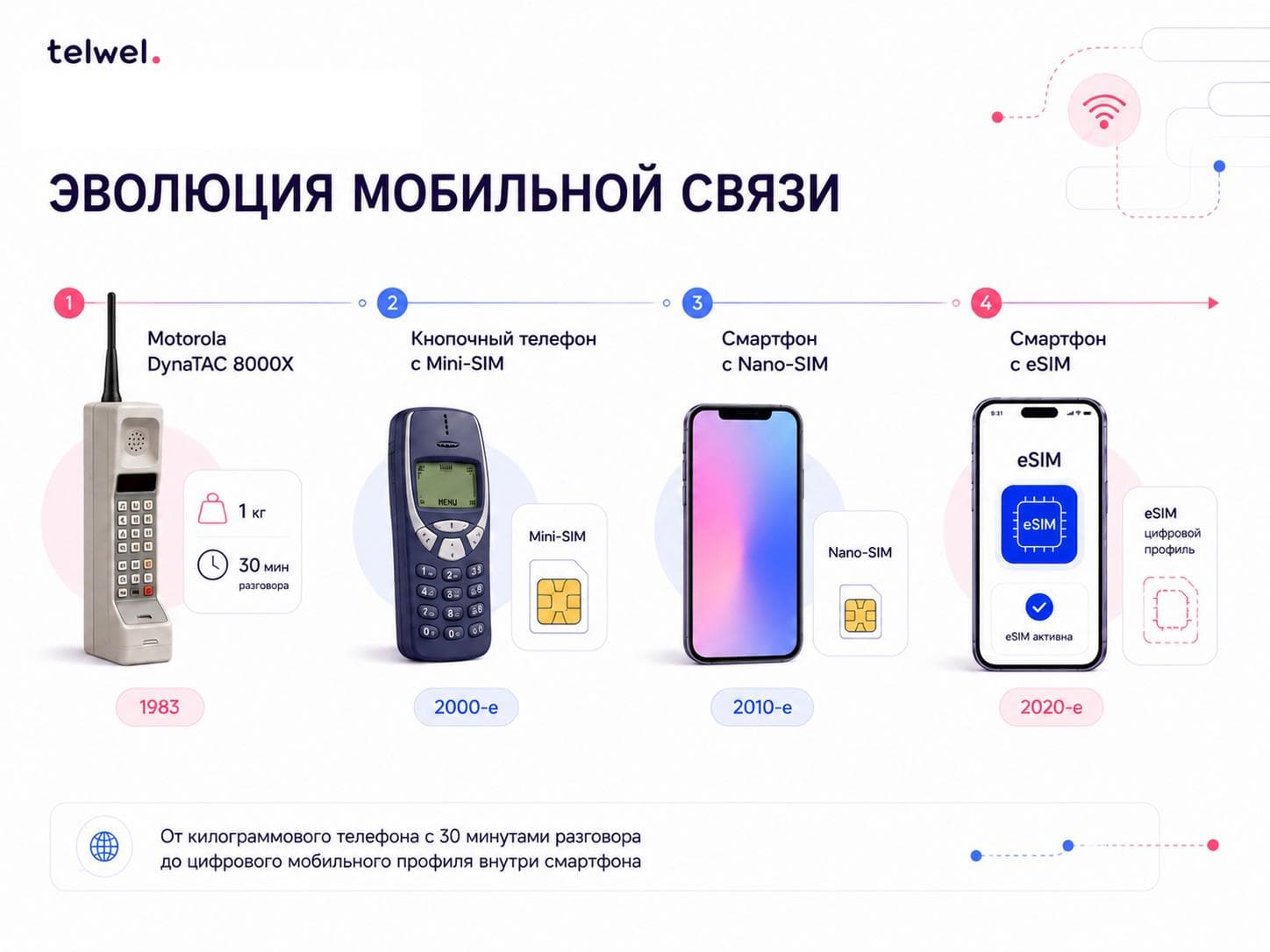
In 1983, Motorola introduced the DynaTAC 8000X—one of the first commercial portable mobile phones. It weighed around 1.1 kg, offered roughly 30 minutes of talk time, took about 10 hours to charge, and cost around $4,000. To a modern user, this device looks more like a heavy cordless phone than a smartphone.
Back then, a phone was primarily a calling device. There was no mobile internet, no apps, and no remote SIM profile downloads. Subscriber identification gradually moved from built-in solutions to removable plastic SIM cards that could be taken out of one phone and inserted into another.
Later, phones became more compact; SMS, cameras, 3G, and 4G arrived. SIM cards shrank too: from standard Mini-SIM to Micro-SIM and then Nano-SIM. But the principle remained the same: the operator wrote data onto a physical chip, and the user installed it manually.
eSIM was the next step. Now the chip is built into the device, and the operator’s profile is downloaded over the air. Users no longer need to wait for a plastic card, hunt for a SIM tray tool, or swap SIM cards at the airport
3. What is eSIM in simple terms
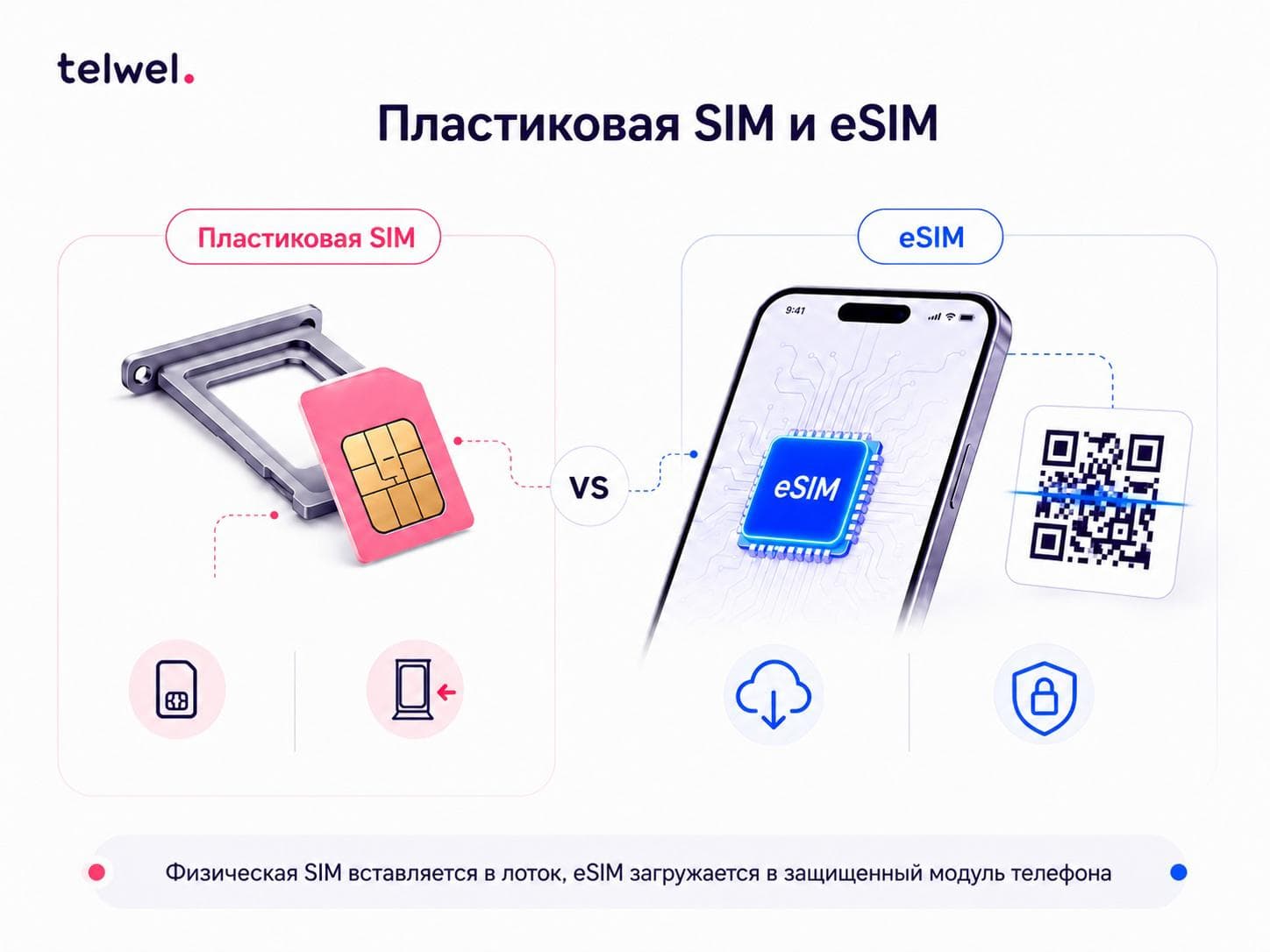
eSIM is a built-in SIM card. The “e” stands for embedded. Unlike a regular SIM card, an eSIM can’t be removed with your fingers—it’s soldered inside the device. [st](https://www.st.com/content/st_com/en/ecosystems/st4sim-cellular-connectivity/back-to-basics.html)
Think of a bank card in a mobile app. You don’t hold a plastic card, but the account exists and access is managed in software. eSIM works on a similar principle: a secure chip inside the phone stores the operator profile, which is downloaded remotely.
What eSIM gives you:
- No need to receive or insert a plastic SIM card. [flolive](https://flolive.net/blog/glossary/embedded-sim-vs-esim/)
- You can activate mobile data via QR code or an app.
- It’s convenient for using a second number.
- Easier to get mobile internet while traveling abroad.
- You can store multiple profiles and switch between them in Settings.
- The physical SIM slot stays free if your phone supports Dual SIM.
What eSIM doesn’t do:
- It doesn’t make an incompatible phone compatible.
- It doesn’t remove regional restrictions.
- It doesn’t bypass carrier SIM locks.
- It doesn’t guarantee service in every country without checking the plan and network.
You can read more about the technology, how it works, and how it differs from a regular SIM card in our article “What is eSIM and how it works.”
4. EID: what it is and why you need it
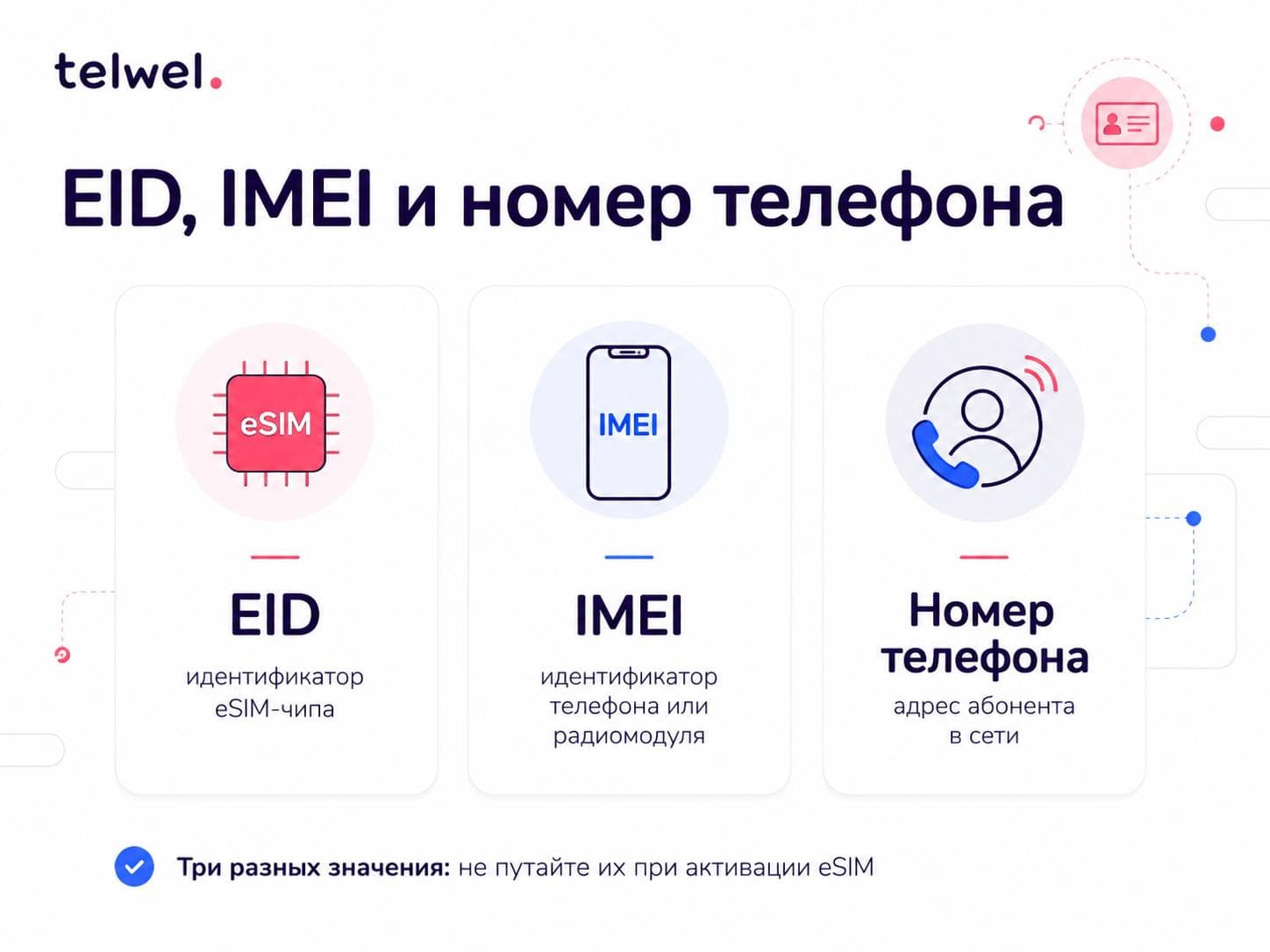
EID is a unique identifier for the built-in eSIM chip. In GSMA technical documents, it’s called the eUICC Identifier. Simply put, the EID is the serial number not of the entire phone, but specifically of its eSIM
An EID usually consists of 32 digits. It’s used so that a mobile operator or eSIM provider knows exactly which built-in module to load the connectivity profile
Think of a package delivery. The IMEI is like the identifier for the phone as a device, while the EID is like the exact number of the electronic safe inside the phone where the mobile profile can be stored. That’s why EID and IMEI aren’t interchangeable.
EID is used for:
• Identifying the eSIM module.gsma
• Remote download of the operator 1
• Activating and managing eSIM
• Troubleshooting connection issues
• Verifying whether the device has an eSIM module.
EID is not a phone number, a tariff, or a subscriber number. It doesn’t show which operator is currently connected and, by itself, doesn’t provide access to mobile service
Where to find the EID:
• By dialing *#06#.
• In the device’s Settings.
• On the original box of some phones.
• In the manufacturer’s official app or account portal.
On iPhone, Apple recommends going to Settings → General → About and scrolling down to EID. The EID may also be printed on the device packaging.
Per the GSMA standard, the EID is 32 digits long and serves as a unique global serial number for the eSIM module. It is not tied to a subscription and is not a plan number
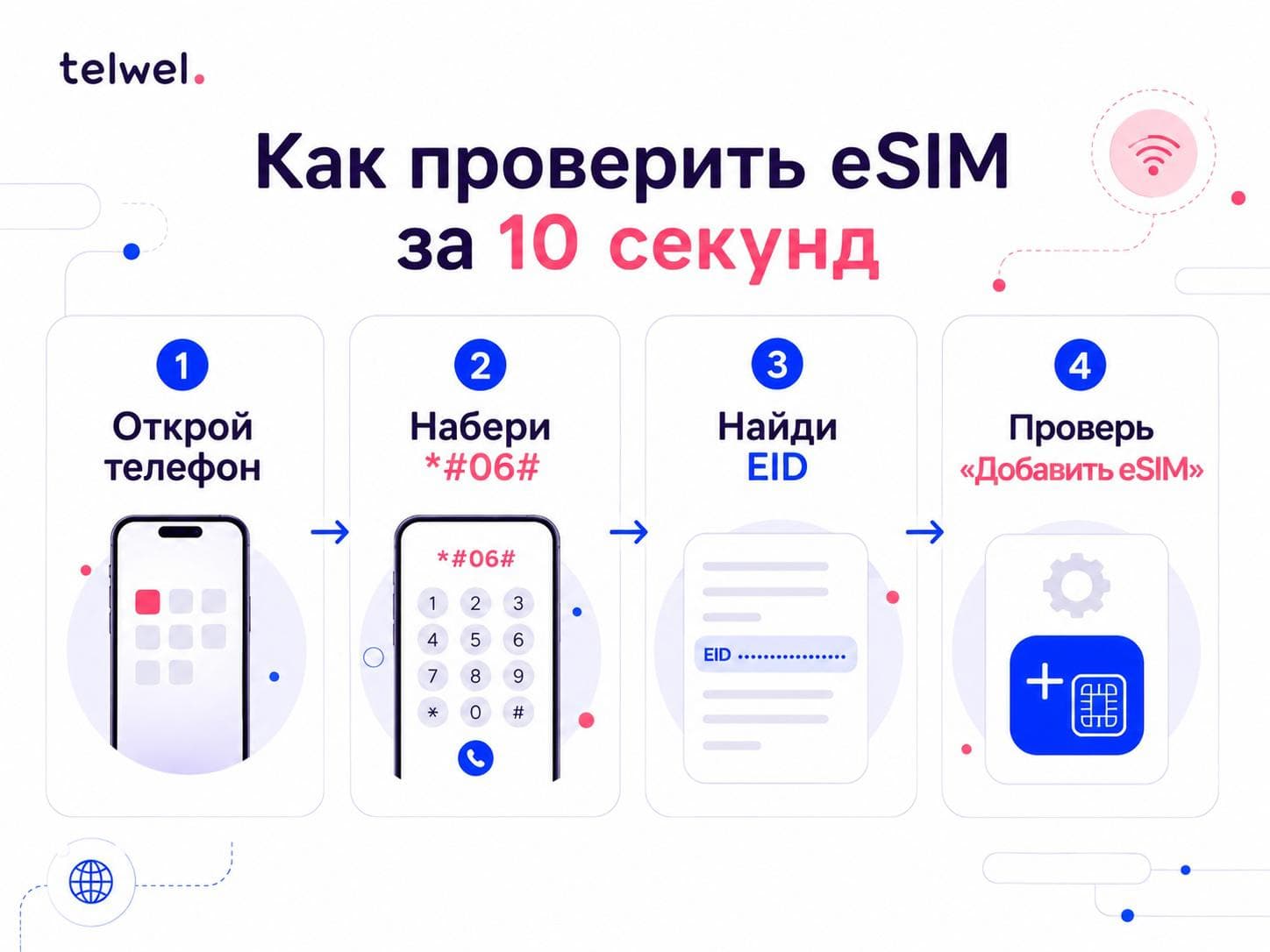
5. How to check eSIM in 10 seconds
Step 1. Open the Phone app.
Step 2. Dial *#06#.
Step 3. Check the window that appears.
Step 4. Look for the EID entry.
If an EID is displayed, it is a strong indication that your phone supports eSIM. However, for a complete check, open Settings and look for “Add eSIM” or a similar option.esim.
If the EID is not displayed:
• Check your phone’s settings.
• Restart the device.
• Install the latest system update.
• Confirm the exact model and sales region.
• Check the manufacturer’s official compatibility list.
If both the EID and the “Add eSIM” button are missing, the phone most likely does not support eSIM, or the feature is disabled for that specific device version
6. Checking in the settings of different phones
iPhone
Settings → Cellular (or Mobile Data) → Add eSIM.
EID: Settings → General → About → EID.
eSIM support starts with iPhone XS, XS Max, and XR, iPhone 11 and later, but the regional version matters. Devices for different markets may vary.
Samsung Galaxy
Settings → Connections → SIM manager → Add eSIM.
EID: Settings → About phone → Status (or SIM status) → EID.
Google Pixel
Settings → Network & internet → SIMs → Add SIM → Set up eSIM.
EID: Settings → About phone → SIM status → EID.
Xiaomi
Settings → SIM cards & mobile networks → Manage eSIM, or search for “eSIM”.
Huawei and Honor
Settings → Mobile network → SIM management → Add eSIM.
Motorola
Settings → Network & internet → SIMs → Add SIM.
Menu names may vary slightly depending on the Android version and the manufacturer’s UI.
7. Which phones support eSIM
Apple: iPhone XS, XS Max, XR and newer models, with some regional exceptions
Samsung: select Galaxy S20 and newer series, Note20, Z Fold, Z Flip, and some A-series models.
Google: Pixel 3a and newer models, depending on country and carrier.
Xiaomi, Huawei, Honor, and Motorola: only certain models and regional versions.
Check not just the phone name, but also:
- the full model number;
- the country of sale;
- the firmware version;
- the presence of an EID;
- the “Add eSIM” option;
- the absence of a SIM loc
8. Why a compatible phone sometimes fails to connect
1. Outdated operating system. Update iOS or Android and restart the phone.
2. Regional version. The same model can ship with different capabilities for different markets. Pay extra attention to devices from mainland China, Hong Kong, and Macau.
3. SIM lock. If the phone is locked to a foreign carrier, it may not accept another operator’s profile. On iPhone, check “Carrier Lock.” The desired status is “No SIM restrictions.”
4. Carrier restrictions. Phone support for eSIM doesn’t mean every operator will provision their profile on it.
5. QR code or network issue. Installing the profile usually requires Wi Fi internet. If the QR code has already been used or is damaged, a new code may be needed.
6. Wrong activation timing. Some travel eSIMs start their validity period after connecting to the destination network, while others start immediately after installation. Read the plan terms before installing.
9. Checking via box, model, and IMEI
The box may list the EID or indicate “Embedded SIM.” However, the absence of this information doesn’t prove incompatibility.
Find the model number in the “About device” section and check it on the manufacturer’s official website. Third-party IMEI services can help identify the model, region, and lock status, but treat them as an additional check only.
Do not share your EID or IMEI in public chats. Provide them only to an official operator, provider, or trusted support service.
10. A traveler’s real-life story
Let’s imagine this scenario: Andrey bought a modern smartphone before a trip to Turkey. The review said this model supports eSIM. He arrived at the airport, connected to Wi‑Fi, scanned the QR code—and got an error.
The issue wasn’t with the plan. The phone was intended for a different region and had a carrier lock. Outwardly, it worked perfectly, and the model name matched the international version. But the settings and EID should have been checked in advance.
If Andrey had dialed *#06# at home, checked the EID, verified the “Add eSIM” option, and confirmed the SIM‑lock status, he could have spotted the problem before the trip.
The main takeaway is simple: don’t just check whether “the model supports eSIM”—verify the specific phone you have in your hands.
11. Tips from the Telwel team
Check your eSIM at home over Wi‑Fi at least one day before your trip. Save the QR code and activation details in a secure place, but do not publish them online. Label your lines in Settings—for example, “Telwel — Turkey” or “Telwel — Japan”.
Before buying a plan, match your phone model, destination country, and the terms of the selected package. If you’re unsure, prepare your model, IMEI, and EID for Telwel support.
Installation guide: https://telwel.io/how-to-use
12. Frequently asked questions
Does iPhone 12 support eSIM?
Yes, most regional versions of iPhone 12 support eSIM. Check the EID, the “Add eSIM” menu, and the model number.
Does iPhone 11 support eSIM?
Yes, it usually does, provided the version is compatible and the phone isn’t carrier-locked.
Does iPhone 7 support eSIM?
No, the standard iPhone 7 does not support eSIM. For iPhone, eSIM support starts with XR and XS.
Do Google Pixel and Xiaomi support eSIM?
Some Google Pixel and Xiaomi models support eSIM, but compatibility depends on the specific model and sales region. Therefore, before installing an eSIM, check the exact model name and its specifications on the manufacturer’s website.
Can I check eSIM support without buying a plan?
Yes. Use *#06#, the phone’s Settings, and the official device specifications.
Why is there an EID but no “Add eSIM” option?
Possible reasons include regional restrictions, SIM lock, outdated firmware, or carrier limitations.
How can I check if my phone supports eSIM without installing a plan?
The fastest and most universal way to check eSIM support is to dial *#06# and verify that an EID is shown, then open the mobile network settings. If the device supports eSIM, the menu usually includes an “Add eSIM” option. For a final compatibility check, also compare your smartphone model against the manufacturer’s official specifications.
How do I check my phone’s eSIM compatibility?
It’s best to check eSIM support using several methods at once: by the presence of an EID, via the smartphone’s settings, and by reviewing the specifications for your exact model. It’s important to consider not just the model but also the regional version of the device—the same phone may be eSIM-compatible in one country and have restrictions in another.
Does the phone need to be unlocked to use eSIM?
Ideally, yes—the phone should be carrier-unlocked. Even if your device technically supports eSIM, a SIM lock may prevent you from adding another operator’s profile. Before traveling, it’s best to confirm in advance that your phone is unlocked and allows adding new eSIM profiles.
13. Checklist before buying an eSIM
·Dial *#06# and look for the EID.
·Check for the “Add eSIM” option.
·Find the exact model number and sales region.
·Verify the official specifications.
·Make sure there is no SIM lock.
·Update iOS or Android.
·Check compatibility with the operator.
·Install the eSIM at home over Wi‑Fi before your trip.
·Save the activation details.
14. Summary
The fastest way to check if your phone has eSIM is to dial *#06# and look for the EID. Then confirm the result via Settings, the regional version, and the lock status. If all checks pass, you can choose a mobile data plan for your trip at https://telwel.io/en/countries