

How long does eSIM activation take: how long does it take to connect?
- How long does eSIM activation take
- Why doesn’t an eSIM connect instantly?
- The eSIM activation process
- What affects connection time
- How to speed up the connection
- What to do if your eSIM takes a long time to activate
- Tips from the Telwel team
- Frequently asked questions
- Pre-travel checklis
1. How long does eSIM activation take
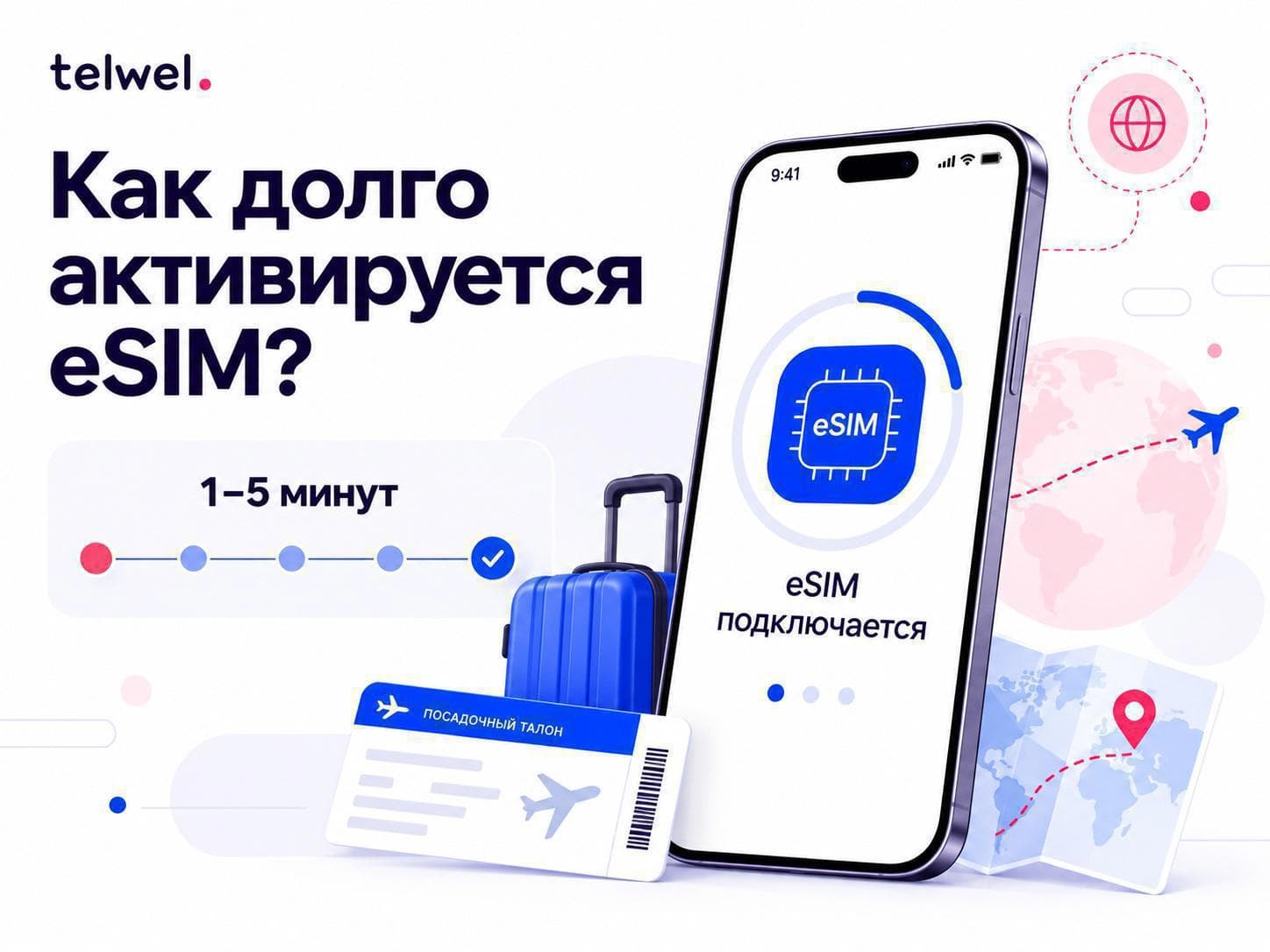
eSIM activation is usually quick and takes just a few minutes. With a compatible phone, stable Wi‑Fi, and a valid QR code, profile download typically takes 1–5 minutes. After you arrive in the destination country, registration on the local mobile network usually takes another 30 seconds to 5 minutes.
It’s important to distinguish between installation and activation. Installing an eSIM means downloading the digital profile to your phone’s memory. Activation is the moment that profile connects to the carrier’s network and starts transmitting mobile data. A Telwel travel eSIM can be installed at home, while internet access usually appears once your phone is in the country for which the plan was selected.
If 10–15 minutes have passed and there’s still no internet, don’t delete the eSIM right away. First check that the line is enabled, selected for mobile data, that data roaming is turned on, and that you have network coverage
Note: According to Telwel connection statistics, 99.3% of users successfully complete the basic profile setup within the first two minutes after starting to scan the QR code or applying the SM-DP+ address and activation code settings.
2. Why the eSIM doesn’t connect instantly
An eSIM is a digital connectivity profile, not just a QR code. After scanning the QR code, your smartphone securely connects to the carrier’s server, downloads the eSIM profile, and adds a new line to the SIM settings. This process requires internet access—either Wi‑Fi or mobile data from another SIM.
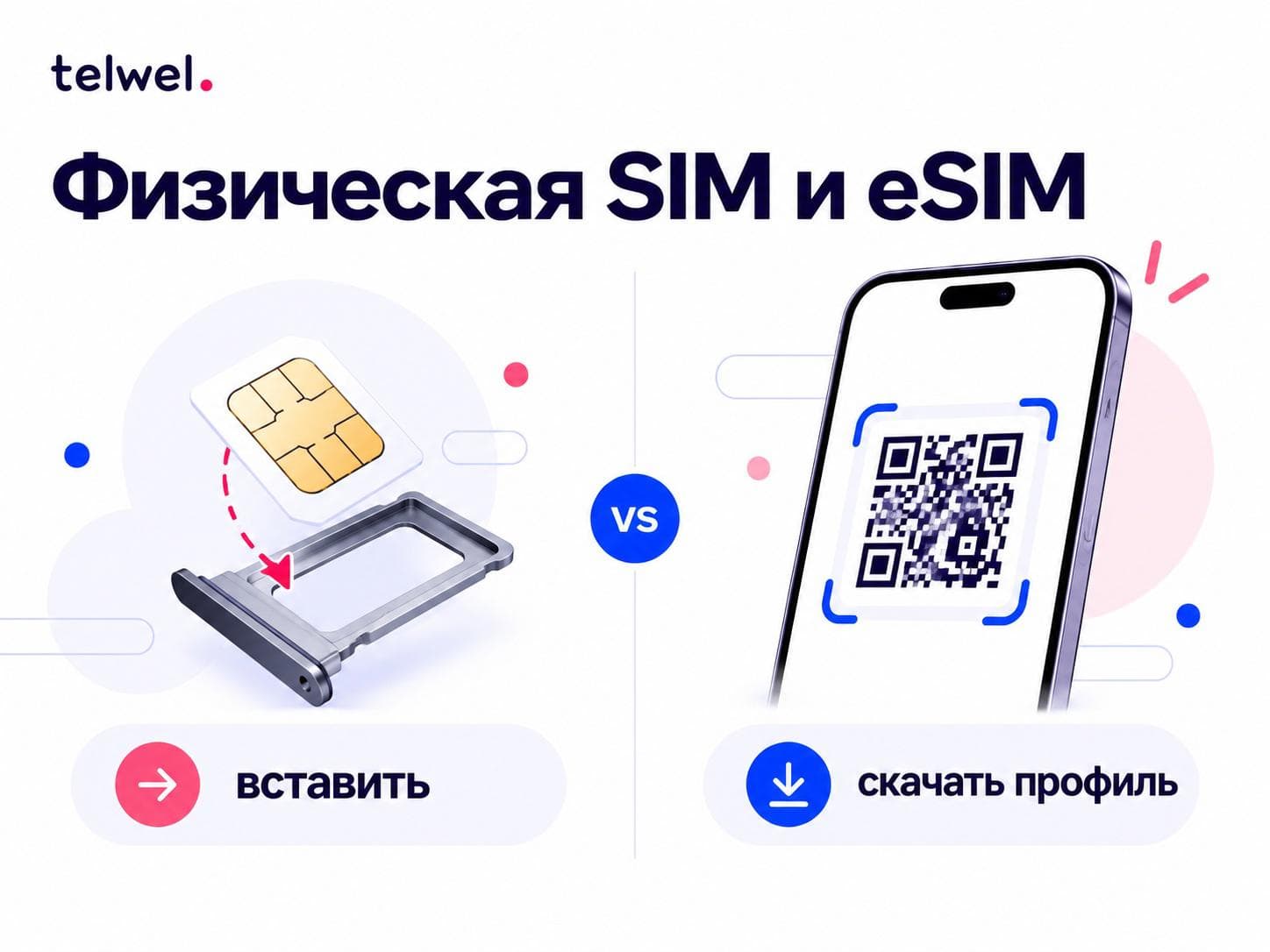
With a regular physical SIM, the data is already stored on the card’s chip, so you only need to insert it into the SIM slot. With an eSIM, the secure chip is already inside the phone, but the carrier’s data must be downloaded over the internet. That’s why eSIM setup can take a few minutes, even if the plan purchase was instant.
You can think of the purchase like booking a flight ticket and activation like boarding the plane. After payment you have the plan, but your phone still needs to receive the profile, find the partner network, and register on it.
3. eSIM activation steps
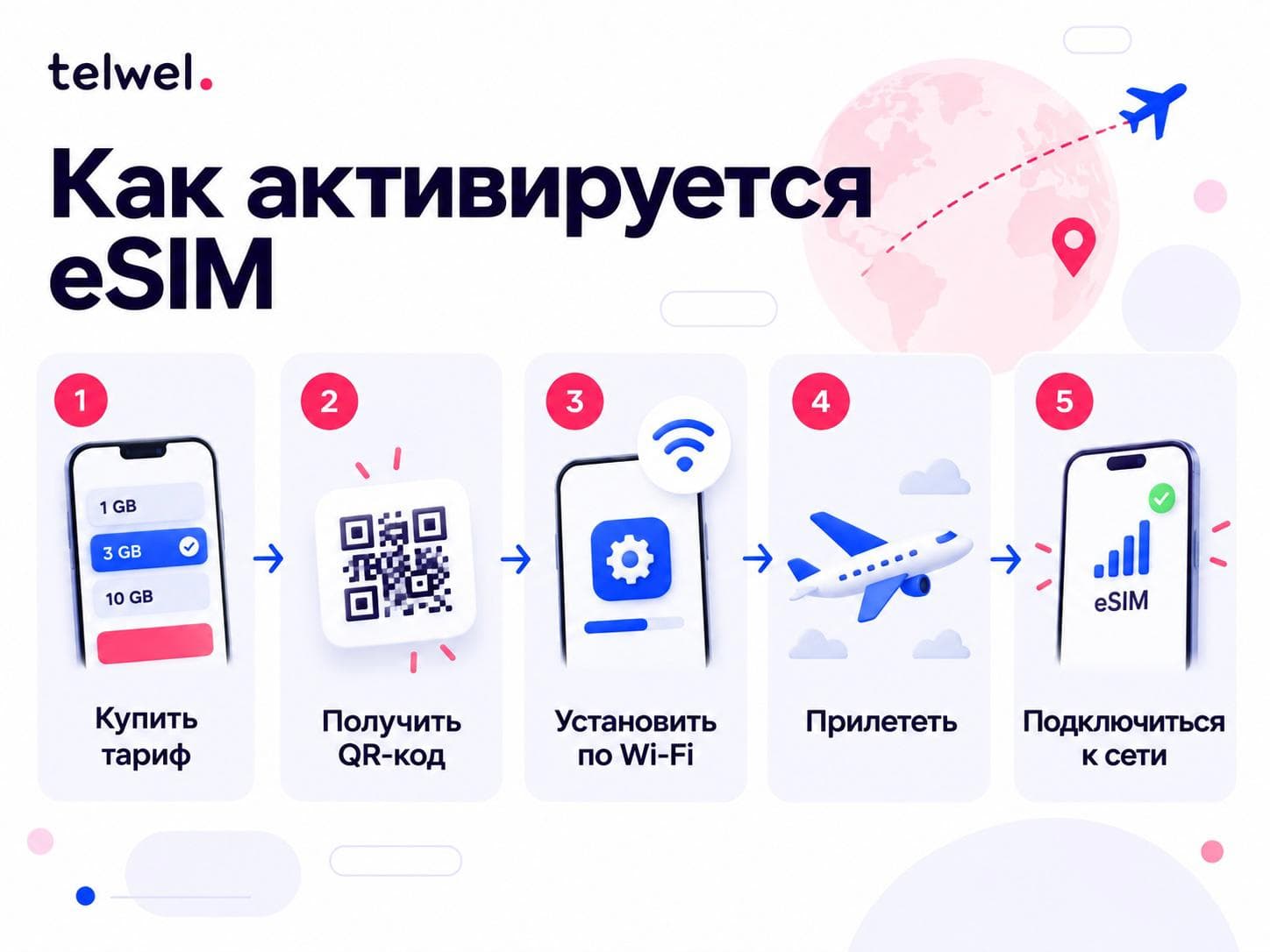
How long eSIM activation takes depends on which stage you mean. For the user, the process consists of five steps.
1. Purchasing the plan and receiving activation details
After payment, you receive a QR code or manual installation details. In Telwel, the QR code is in your account under the “Inactive eSIMs” tab, and instructions are sent by email. At this stage, the phone is not yet connected to the mobile network.
2. Downloading the eSIM profile to the device
Connect to Wi‑Fi, open settings, and choose “Add eSIM.” On iPhone: Settings → Cellular → Add eSIM. On Android, the path varies by brand: typically Settings → Network & internet or Connections → SIM cards → Add eSIM.
Scan the QR code and wait for the message that the profile has been added. Do not close the screen or disconnect from Wi‑Fi until the download is complete.
3. Enabling the line for data
An installed eSIM may appear in the SIM list but not be used for internet. Turn on the new line, set it for “Mobile data” or “Cellular data,” and, if required, enable data roaming for that line.
4. Finding a network in the plan’s coverage country
If your current country is not covered by the plan, the eSIM will not register on a supported network. For example, a Turkey plan will not connect to a network in Russia—and that’s normal. After you land, the phone will start searching for the partner network. So your eSIM can be installed in advance but will activate only in the destination country.
5. Registering on the network
Once the network is found, the device registers with your carrier and gains internet access. This usually takes from a few seconds to a few minutes. Sometimes it helps to turn on Airplane mode for 10–15 seconds or restart the phone.
4. What affects connection time
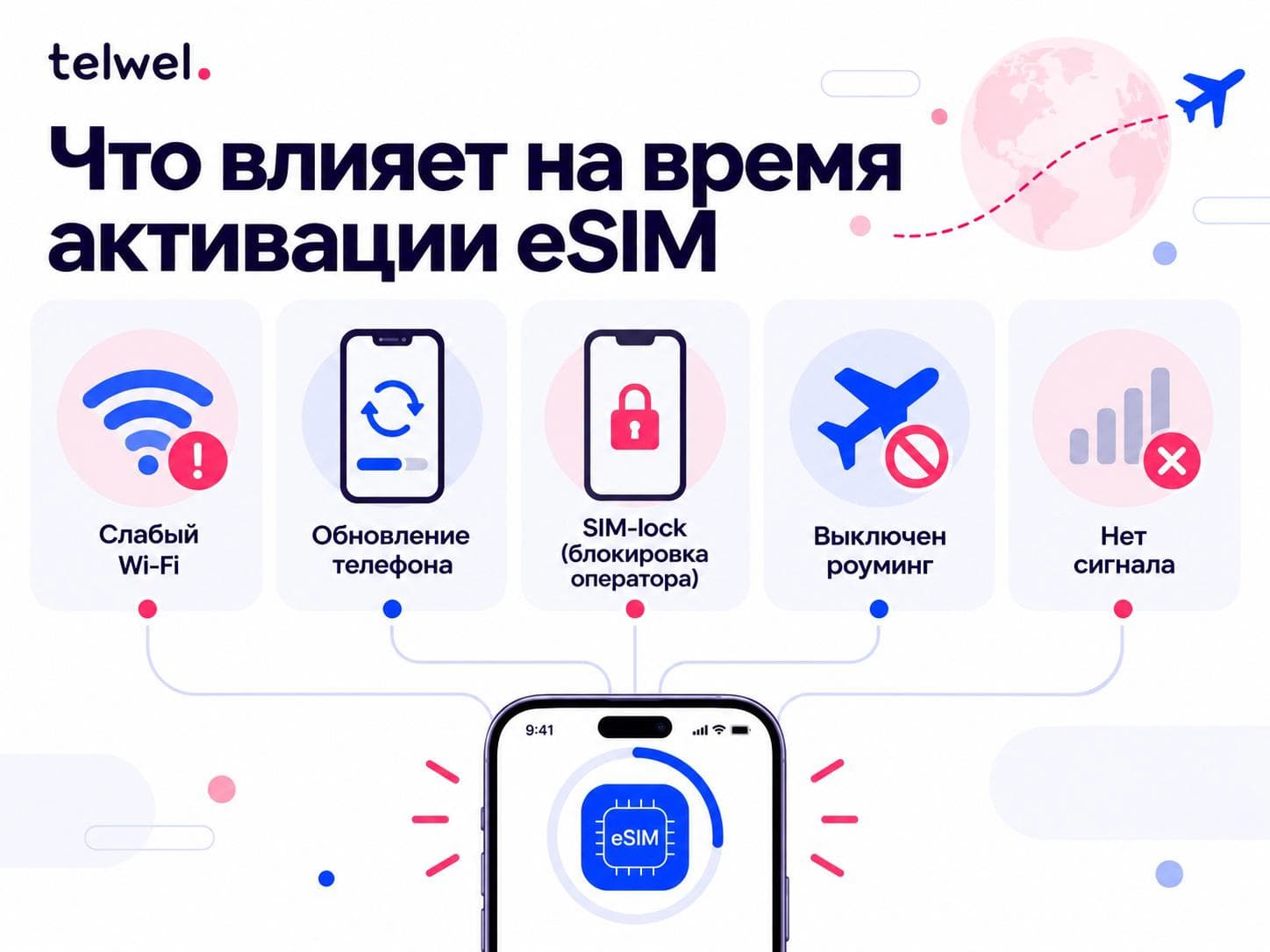
How long an eSIM takes to activate depends on many factors: activation time can vary depending on the phone, network quality, country, and carrier. The main reasons for delays are:
- Weak Wi‑Fi. The profile downloads slowly or the installation is interrupted. Connect to a stable Wi‑Fi network.
- Outdated iOS or Android. Update the operating system and restart the device.
- The phone does not support eSIM. Check compatibility before purchasing. You can read more about how to check if your phone supports eSIM in our article.
- SIM lock. A smartphone locked to a foreign carrier may not accept another operator’s profile.
- eSIM not selected for mobile data. Enable the line and set it as the primary line for internet.
- Data roaming is off. In most travel scenarios, you need to enable data roaming specifically for the eSIM.
- No coverage. Make sure you are in the country covered by your plan.
- Network load. At an airport or large event, registration can sometimes take longer.
Many travel eSIMs start counting the validity period after the first connection to a supported network, but conditions depend on the specific plan. Check the plan description before installation.
5. How to speed up connection
Prepare your phone in advance; the best time to install is at home or in your hotel, when you have stable Wi‑Fi and no rush.
- Make sure your device supports eSIM.
- Update your iPhone or Android.
- Connect to a stable Wi‑Fi network.
- Open the QR code on another screen: a laptop, tablet, or second phone.
- Choose “Add eSIM” and scan the QR code.
- Wait for the message confirming successful installation.
- Do not delete the profile or rescan the QR code unless necessary.
- On arrival, enable the eSIM for mobile data and turn on data roaming if the instructions require it.
- If no network appears, turn on Airplane mode for 10–15 seconds.
Telwel’s detailed guide: https://telwel.io/en/how-to-use
6. What to do if the eSIM does not activate for a long time
If more than 10–15 minutes have passed, check the settings in order. Do not delete the eSIM as the first step, as reinstalling may sometimes require a new QR code.
- You have internet access via Wi‑Fi or another SIM card.
- The profile appears in the SIM card list.
- The new eSIM is enabled.
- It is selected for mobile data.
- Data roaming is enabled for it if you are abroad.
- The country is covered by the plan you purchased.
- Network selection is set to automatic.
- The phone has been restarted or Airplane mode has been toggled.
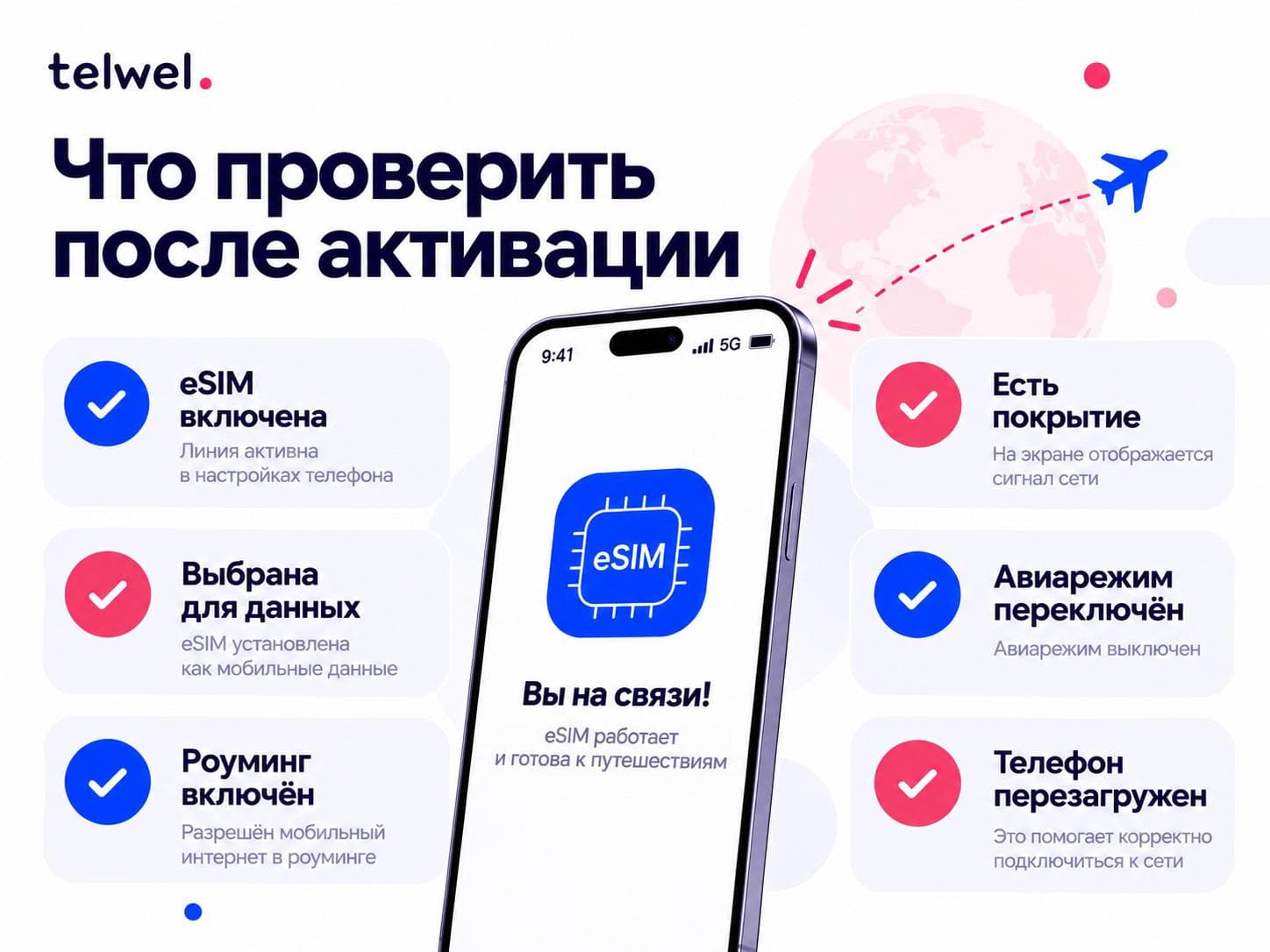
7. Pre-trip checklist
- Your phone supports eSIM.
- Your destination country is covered by the plan.
- The eSIM is installed over a stable Wi‑Fi connection.
- The profile has been successfully added to settings.
- The line is labeled with the country name.
- The QR code and instructions are saved in your account.
- On arrival, the eSIM is selected for mobile data.
- Data roaming is enabled if required.
eSIM activation usually takes a few minutes: 1–5 minutes to download the profile and up to a few more minutes to register on the network after arrival. To avoid waiting for internet at the airport, install the eSIM in advance over Wi‑Fi, save the QR code, and on arrival enable the profile for mobile data.
8. Frequently asked questions
How long does eSIM activation take?
The activation process takes just a few minutes. More precisely, downloading the profile over Wi‑Fi usually takes 1–5 minutes. After the network appears in the plan’s coverage country, connection typically takes another 30 seconds to 5 minutes.
Can I install the eSIM at home and connect it during my trip?
Yes. You can add the profile in advance. Internet usually starts working after you arrive in the plan’s coverage country, enable the eSIM, and register on the partner network.
The eSIM is installed, but the internet isn’t working. Why?
Check that the eSIM is selected for mobile data, that data roaming is enabled, and that you have network coverage. Also make sure the plan is valid in your current country.
Do I need to enable data roaming?
For many travel eSIMs, yes—if the instructions say so. Data roaming for the eSIM allows it to connect to the foreign partner network.
Can I activate the eSIM manually?
Yes, if your provider has supplied an activation server address and a confirmation code. In settings, choose manual eSIM addition and carefully enter the details.